
This article covers how to handle gift orders in WooCommerce, the quick order form with cash on delivery, and printing greeting cards, packing slips and shipping labels.
Gifts in your orders
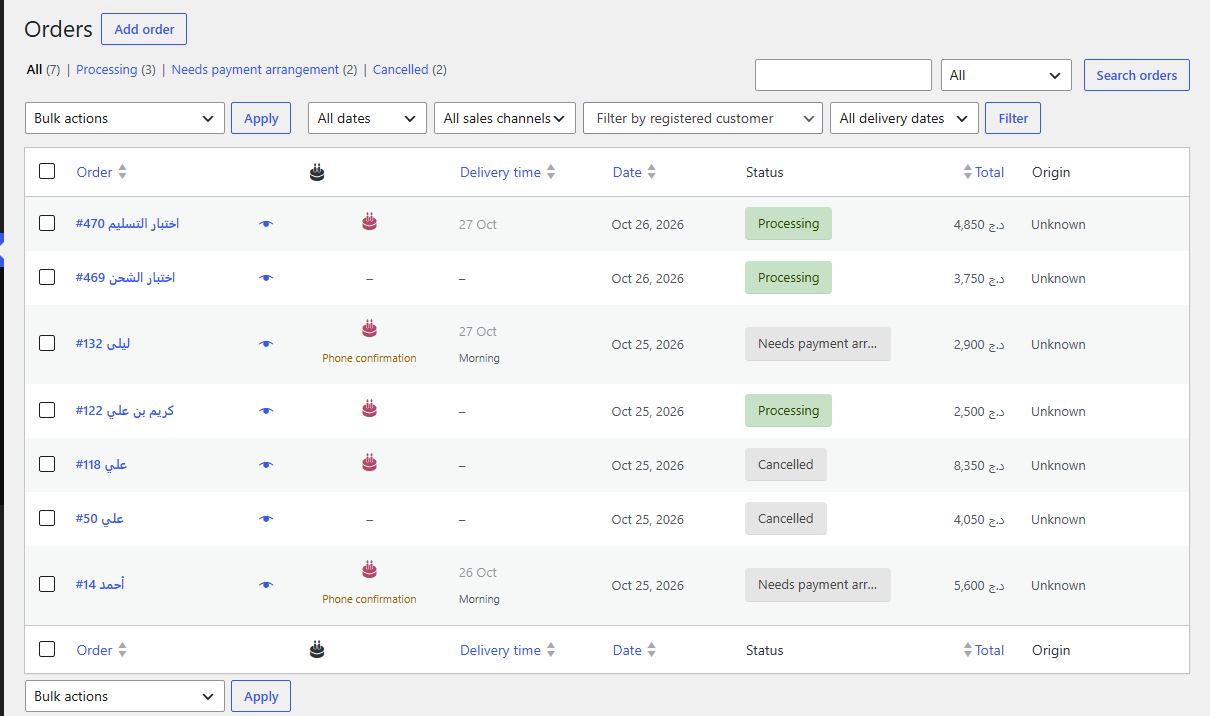
Gift details show everywhere your team and the customer need them, on both free and Pro:
- The orders list has two columns, Gift and Delivery date, and a delivery filter: delivery today, delivery tomorrow, gifts only.
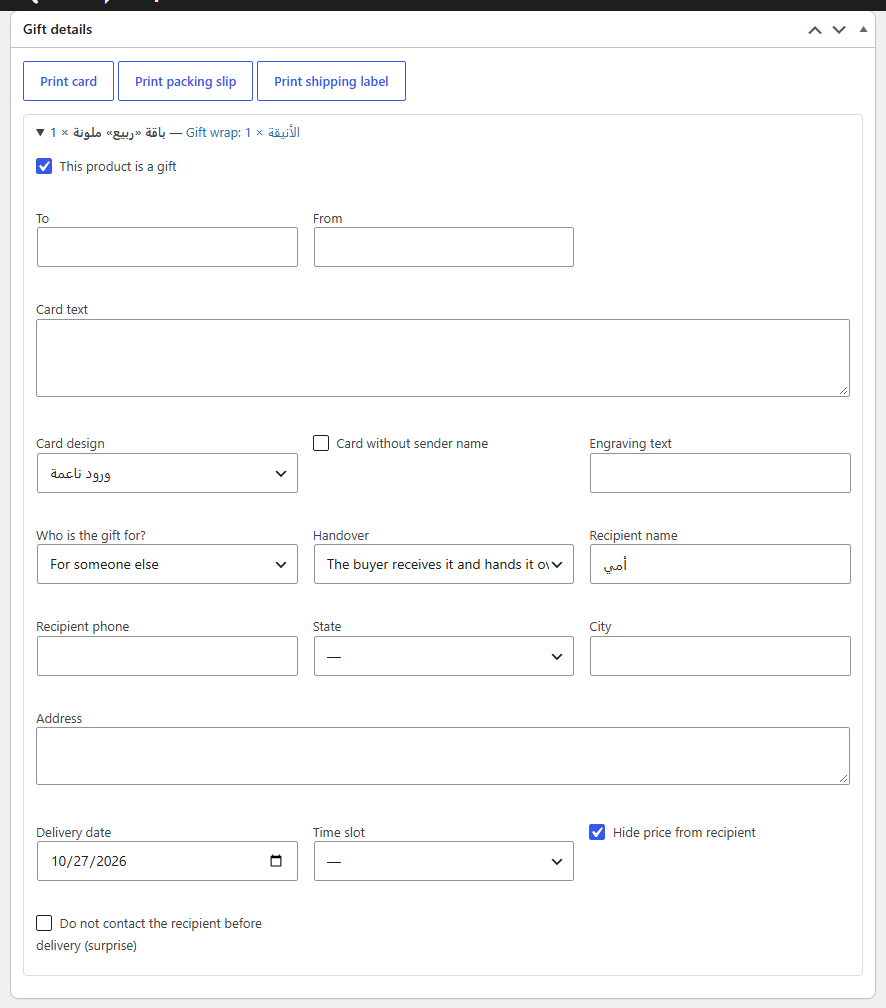
- The order page has a Gift details box: the card, the recipient, the handover method, the delivery date and the privacy options. You can edit them from there.
- The details appear in the customer and store emails and on the order page in My Account.
- A daily morning email to the site admin lists today’s gift orders. Turn it on or off in Hadiya → Delivery and dates.
Printing Pro
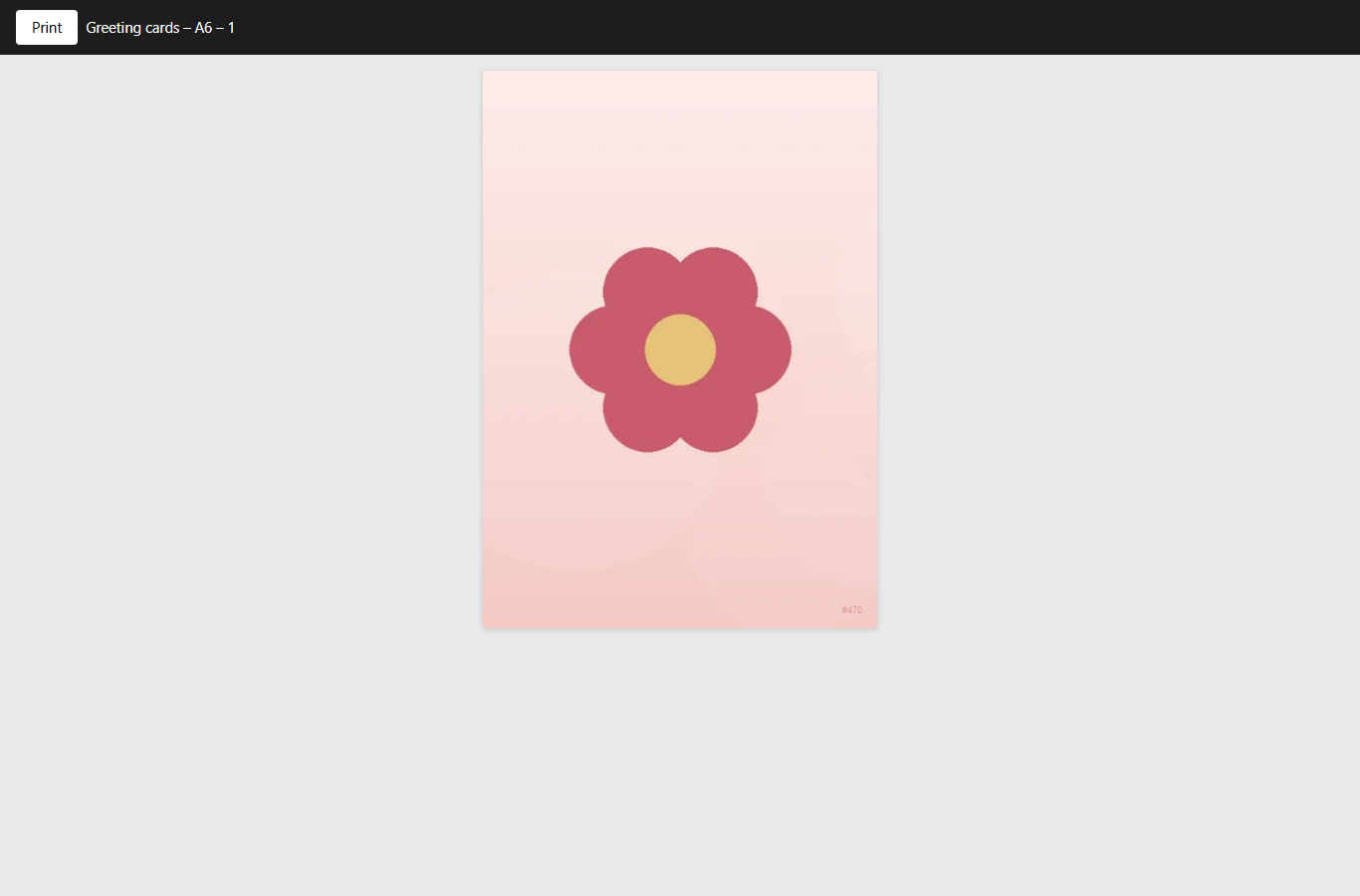
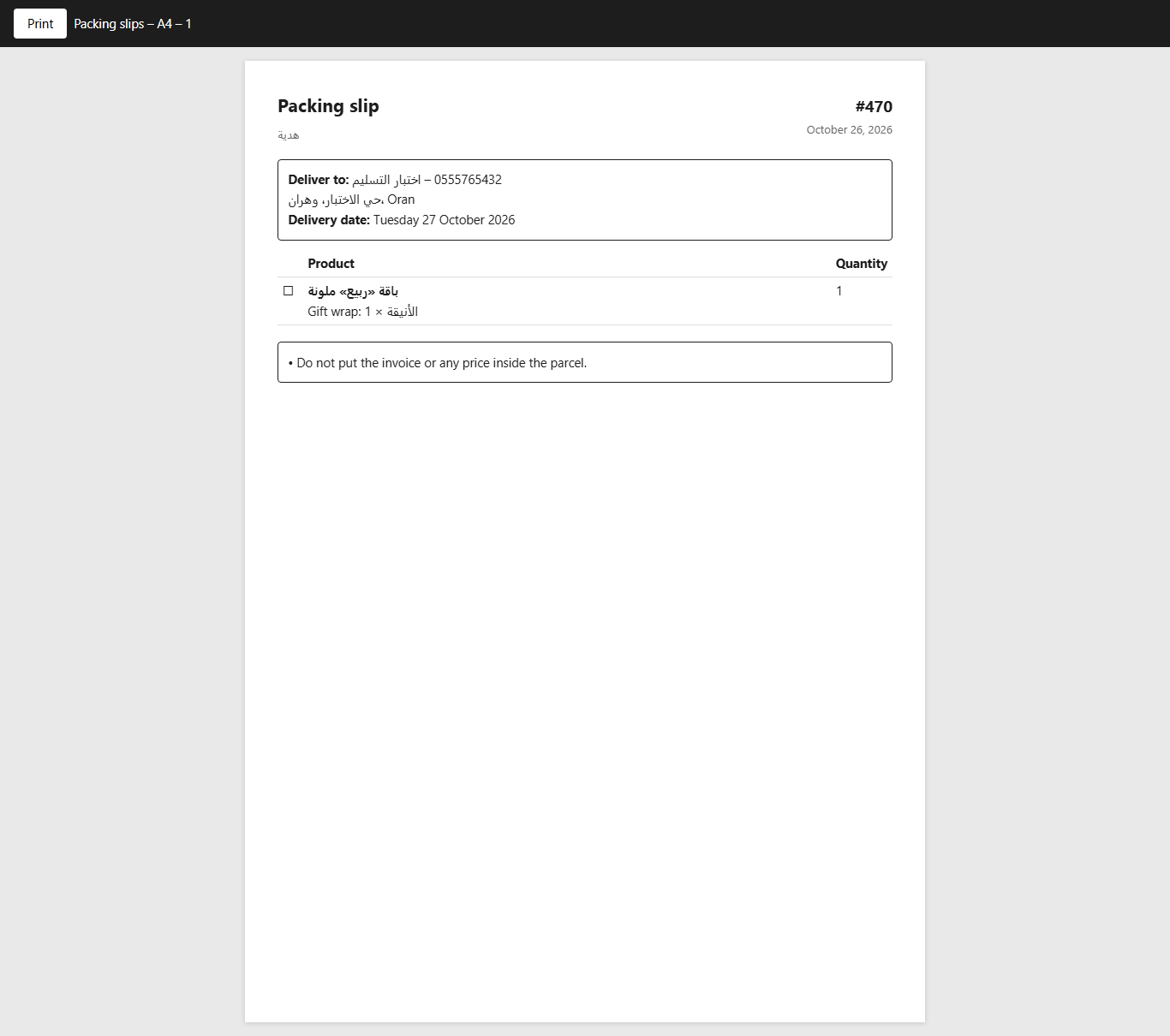
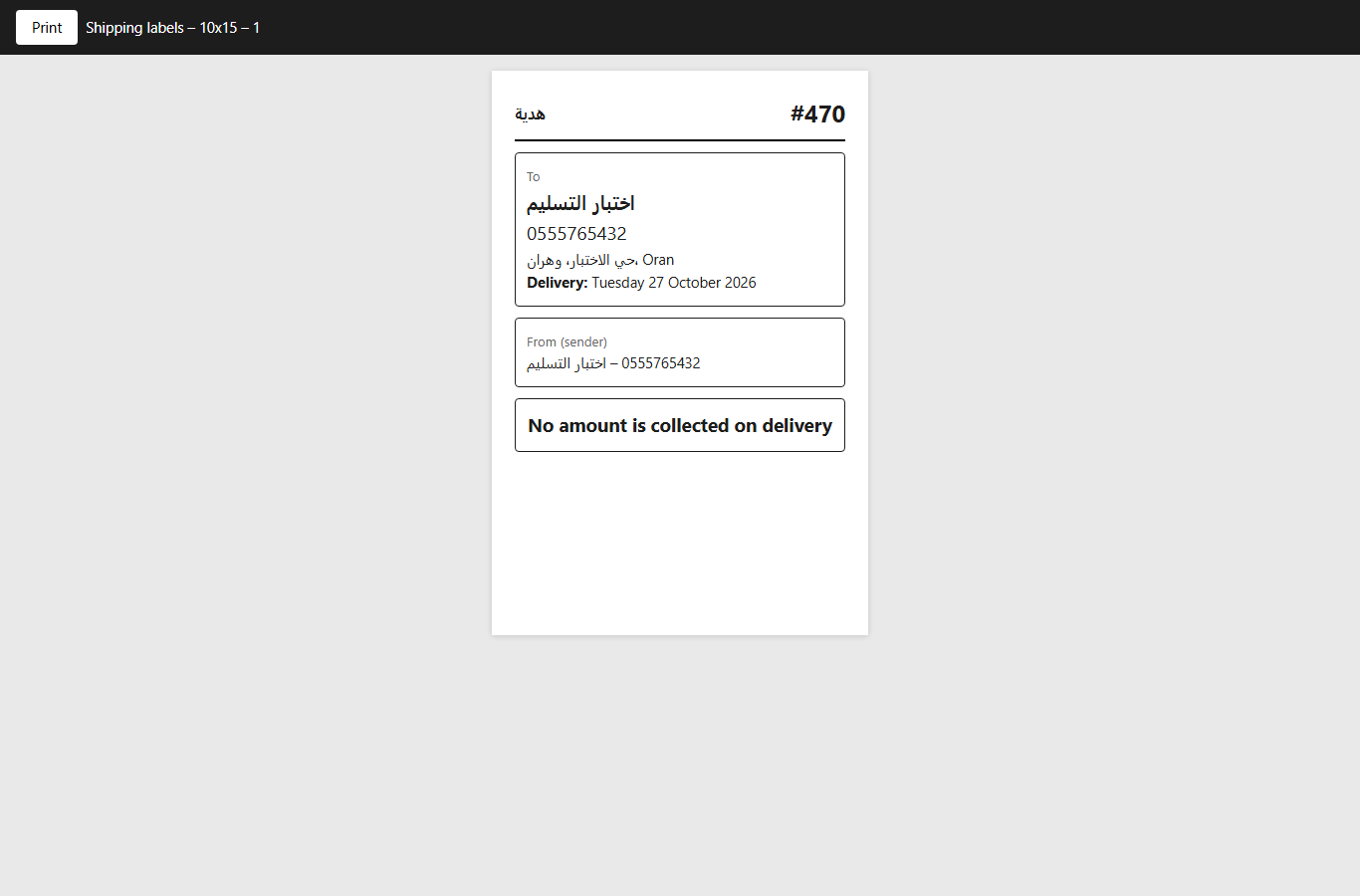
In the Gift details box click Print card, Print packing slip or Print shipping label. To print several orders at once, select them in the orders list and use the bulk actions with the same names.
- Greeting card: with the design the customer chose and their message. The size (A6 or 10×15 cm) is set in Hadiya → Order form.
- Packing slip: the products and wrap, with “hide the price” and “don’t call the recipient” warnings when the customer asked for them.
- Shipping label: the recipient’s name, phone and address, with a warning when nothing is to be collected on delivery.
The quick order form Pro
The “Quick order form” block puts a short form on the product page: the customer enters their details, picks their state so delivery is calculated, sees a live summary with the total, then clicks “Order now”. The order is created straight in WooCommerce with cash on delivery, skipping the cart.
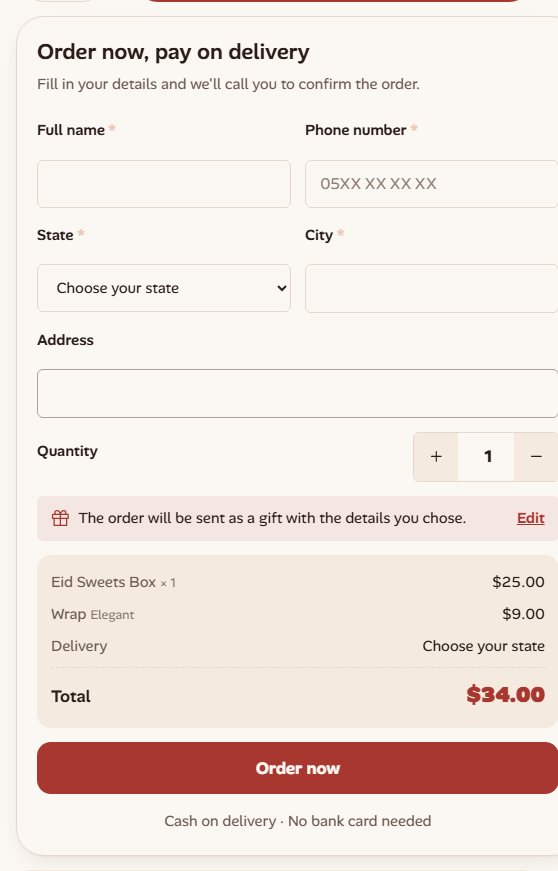
- On mobile a sticky button shows at the bottom of the screen.
- For a variable product the customer picks the variation first.
- The form doesn’t show for gift wraps, “build your gift box” products, external and grouped products, or out of stock products.
In the block settings you can change the title, description and button text, and turn off the sticky mobile button. To add it automatically below the add to cart button, turn on the option in Hadiya → Gift options → Product page placement.
Form settings Pro
Open Hadiya → Order form:
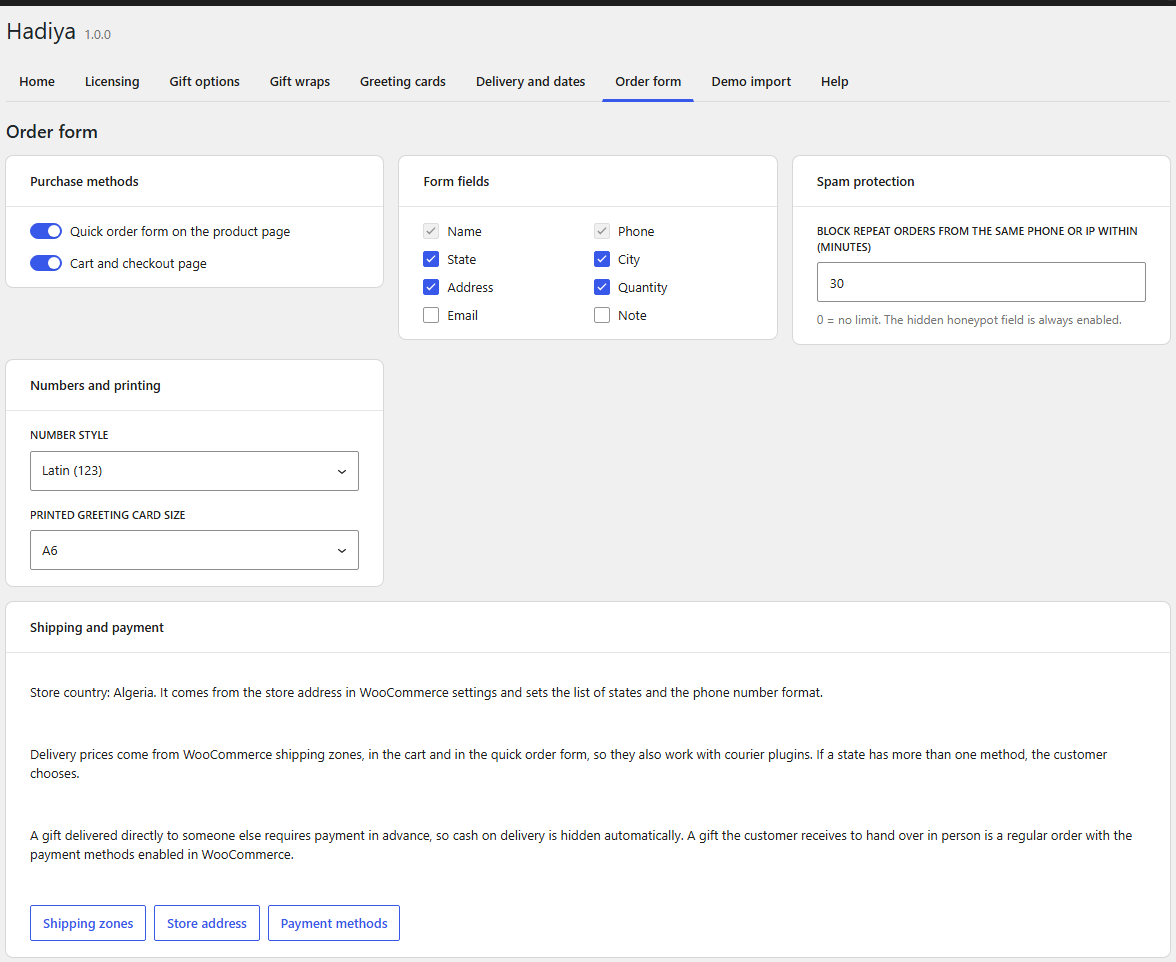
- Purchase methods: “Quick order form on the product page” and “Cart and checkout page”. Enable at least one. Direct delivery to the recipient needs “Cart and checkout page”.
- Form fields: name and phone are always on. State, city, address and quantity are on by default, and you can add email and note.
- Spam protection: blocks repeat orders from the same phone or IP within the minutes you set (default 30, 0 = no limit). The hidden honeypot field is always on.
- Numbers and printing: “Number style” Latin (123) or Arabic-Indic (١٢٣), and the printed greeting card size, A6 or 10×15 cm.
- Shipping and payment: direct links to WooCommerce shipping zones, store address and payment methods.
Delivery in the form Pro
The form takes delivery prices from your WooCommerce shipping zones for the chosen state. If a state has more than one method the customer chooses; if it has none, they see “Delivery is not available to this state at the moment.” The list of states comes from the store country in the store address.
Quick orders with a gift Pro
If the customer set up their gift in “Make it a gift”, the quick order is sent as a gift with the same details, and the wrap shows in the summary. If they chose delivery straight to the recipient, payment in advance is required, so they see a button that takes them to checkout to complete the order.