
This article covers the two ways to send a gift to someone else, how each affects payment and shipping, and how to set delivery days and times.
Who is the gift for?
In “Make it a gift” the customer answers “Who is the gift for?” with “Me” or “Someone else”. With “Someone else” they enter the recipient’s name and choose how the gift is handed over:
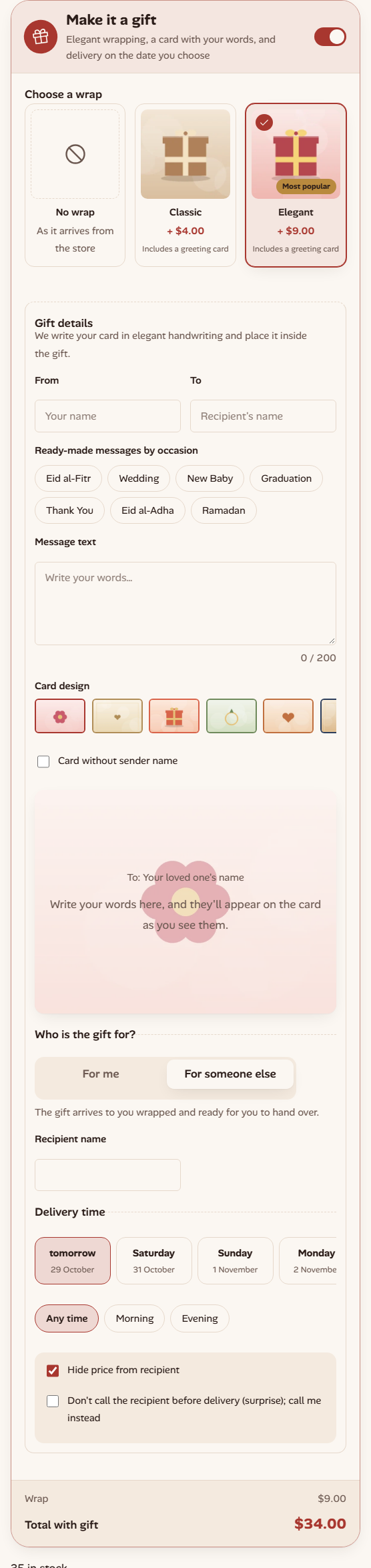
| Delivered straight to them | I receive it and hand it over | |
|---|---|---|
| Shipped to | The recipient | The customer |
| Recipient details | Name and phone required, plus state, city and address | Name optional, no address needed |
| Payment | Paid in advance; cash on delivery is hidden | Any payment method enabled in WooCommerce |
| Shipping price | By the recipient’s state | By the customer’s address |
Delivered straight to the recipient
The gift reaches the recipient with nothing to pay on the parcel, so payment in advance is required and cash on delivery is hidden automatically.
- In the cart, each direct gift gets its own shipment labeled “Deliver to” with the recipient’s name, priced from your shipping zones by their state. The rest of the order stays in the “Deliver to you” shipment.
- If the whole order is a gift for one recipient, the order’s shipping address becomes the recipient’s address.
If a direct-gift order still arrives with cash on delivery, its status becomes “Needs payment arrangement” and a note asks you to call the sender to arrange payment before delivery. Nothing is collected from the recipient.
I receive it and hand it over
The gift reaches the customer wrapped and ready to hand over. This is a regular order with the payment methods enabled in WooCommerce, and it needs no recipient address.
Privacy and surprises
With any gift the customer can choose to hide the price from the recipient. With a gift for someone else they can also ask you not to call the recipient before delivery (a surprise) and to call them instead. Both show in the order details, and on the printed packing slip on Pro, so your team doesn’t put the invoice in the parcel and calls the sender. The plugin never sends anything to the recipient.
The gift in the cart and at checkout
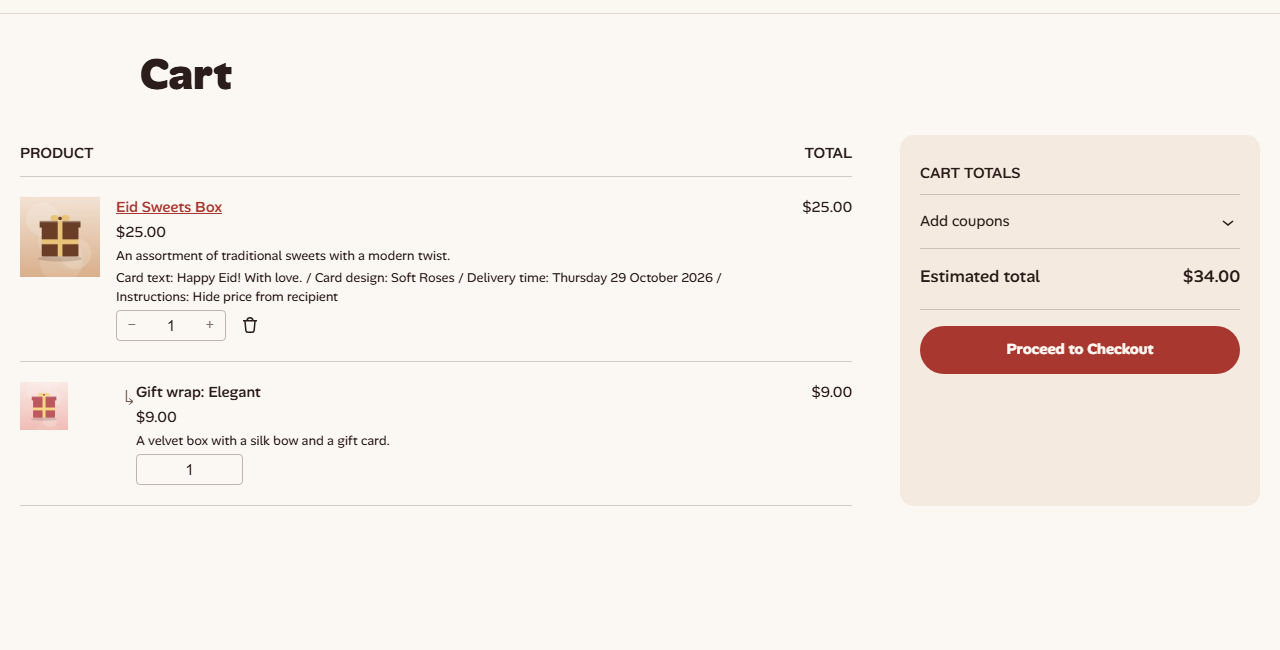
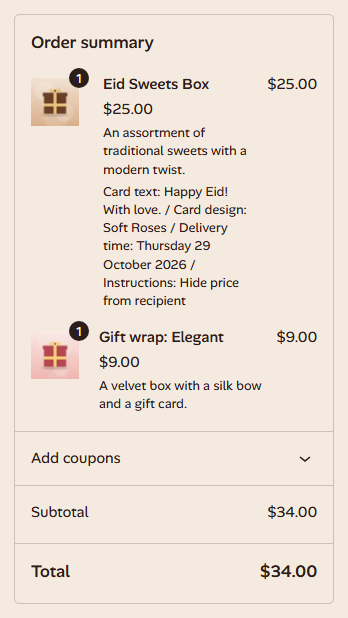
Gift details show under the product in the cart and the order summary: the card text, the design, the delivery date and instructions. The wrap is a separate line linked to the product.
Delivery days and times
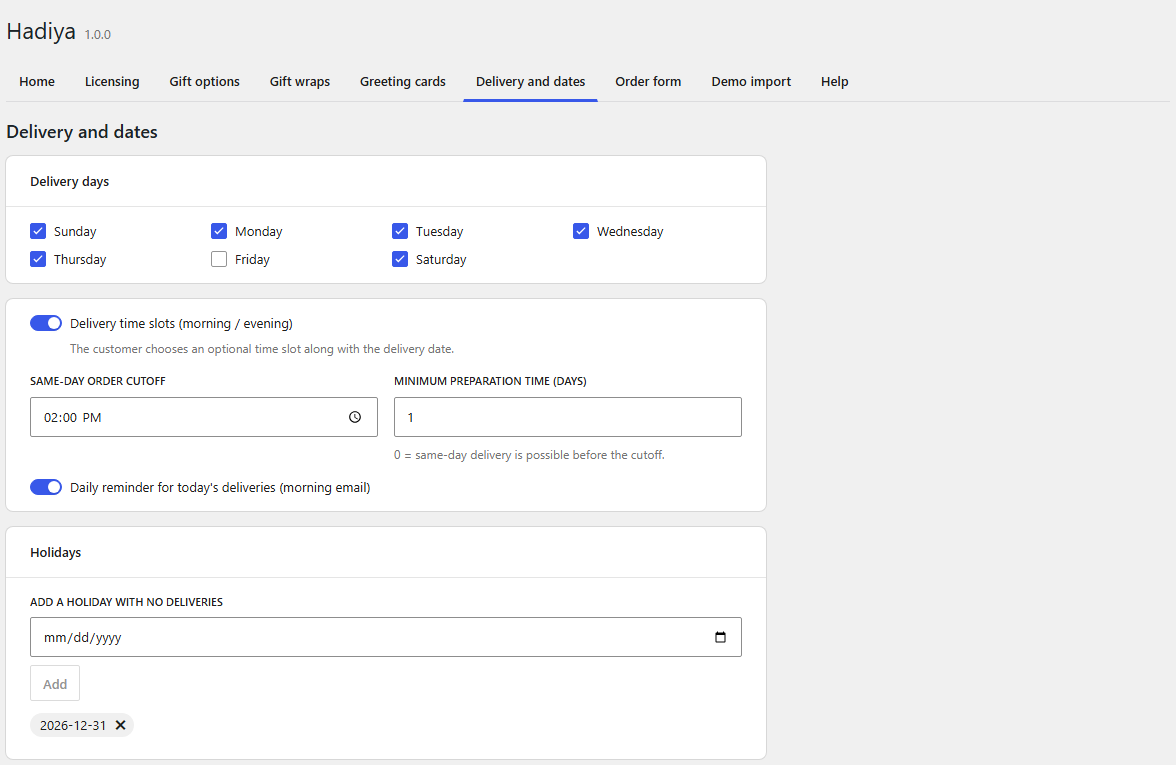
The customer picks a delivery date from the available days. Set this up in Hadiya → Delivery and dates:
| Setting | What it does | Default |
|---|---|---|
| Delivery days | The weekdays you deliver on. | Every day except Friday |
| Minimum preparation time (days) | The earliest delivery day after ordering. 0 allows same-day delivery. | 1 |
| Daily reminder for today’s deliveries | A morning email to the site admin with today’s gift orders. | On |
| Delivery time slots (morning / evening) Pro | The customer picks any time, morning or evening. | On |
| Same-day order cutoff Pro | After this time, same-day delivery isn’t offered. | 14:00 |
| Holidays Pro | Specific dates with no deliveries. | None |
The delivery bar Pro
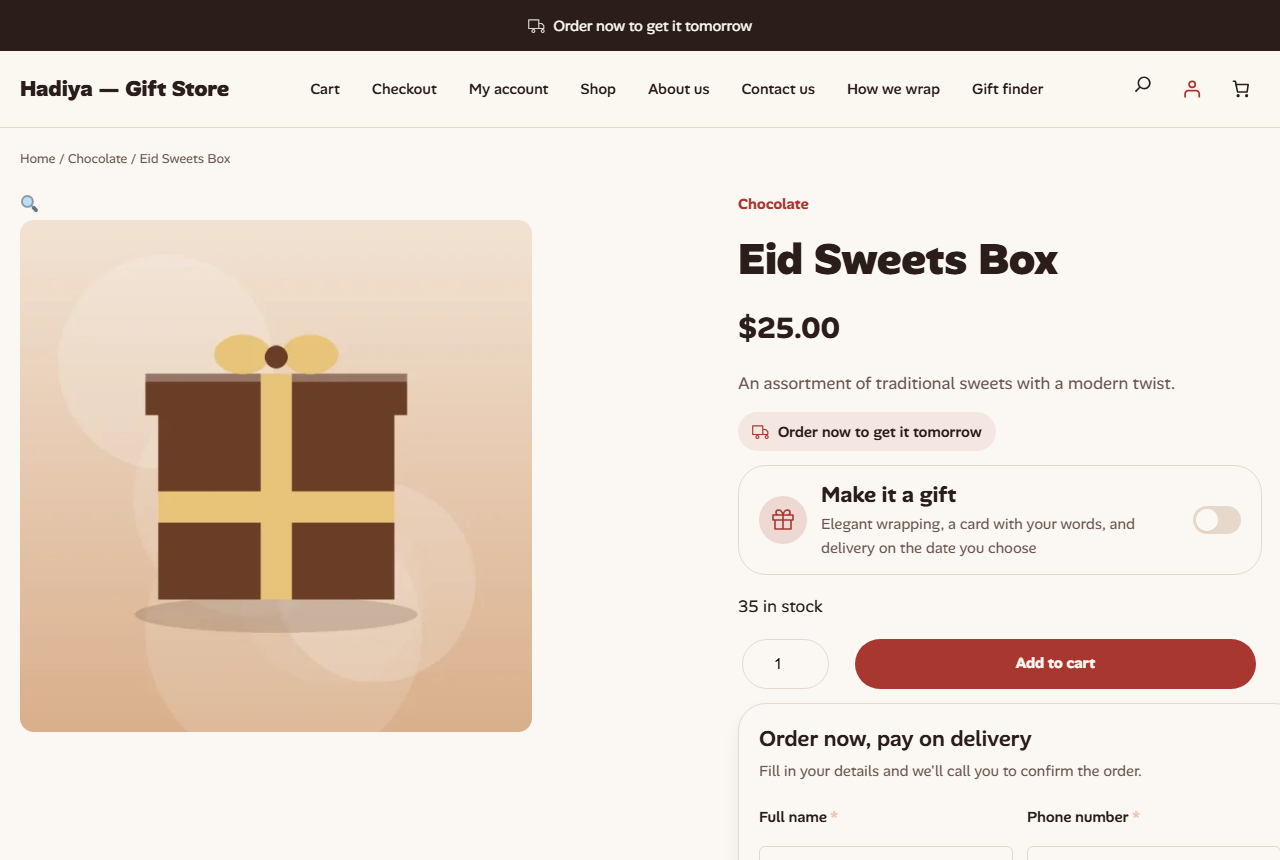
The “Delivery bar” block shows a message such as “Order now for delivery tomorrow”, or a countdown to the same-day cutoff, calculated from the settings above. Place it at the top of the site or on the product page above the add to cart button.
Shipping and payment from WooCommerce
Hadiya doesn’t need a rate table of its own. Everything comes from your WooCommerce settings:
- Store country comes from the store address, and sets the list of states and the phone number format in the forms.
- Delivery prices come from your shipping zones, so they also work with courier plugins. If a state has more than one method, the customer chooses.
- Payment methods are the ones enabled in WooCommerce, with cash on delivery hidden only for direct gifts.
On Pro, Hadiya → Order form has a “Shipping and payment” section with direct links: Shipping zones, Store address, Payment methods.