
This article covers the “Make it a gift” option on the product page, setting up gift wraps and greeting cards, occasions with suggested messages, and the per-product gift settings.
The “Make it a gift” option
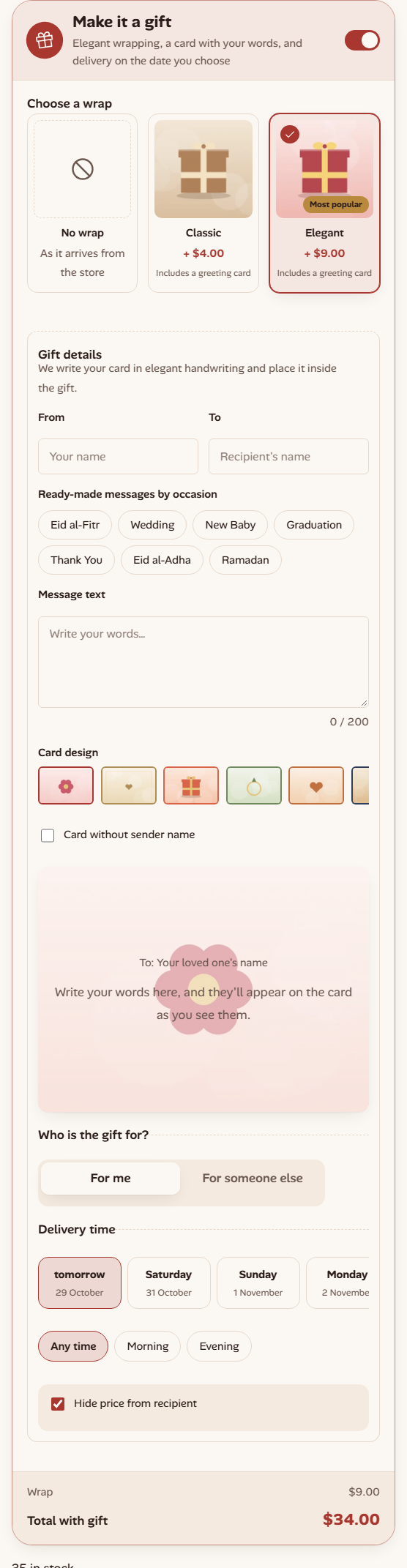
On the product page the customer turns on “Make it a gift” to choose a wrap, write the card, set the recipient and the delivery date, and see the total with the gift update live.
Set it up in Hadiya → Gift options:
| Setting | What it does | Default |
|---|---|---|
| Enable “Make it a gift” | Shows the option on the product page (and in the quick order form on Pro). | On |
| Included categories | Product categories that get the option. | Empty = all products |
| Default wrap | A wrap selected in advance. | None (customer chooses) |
| Gift button text | The text the customer sees. | Make it a gift |
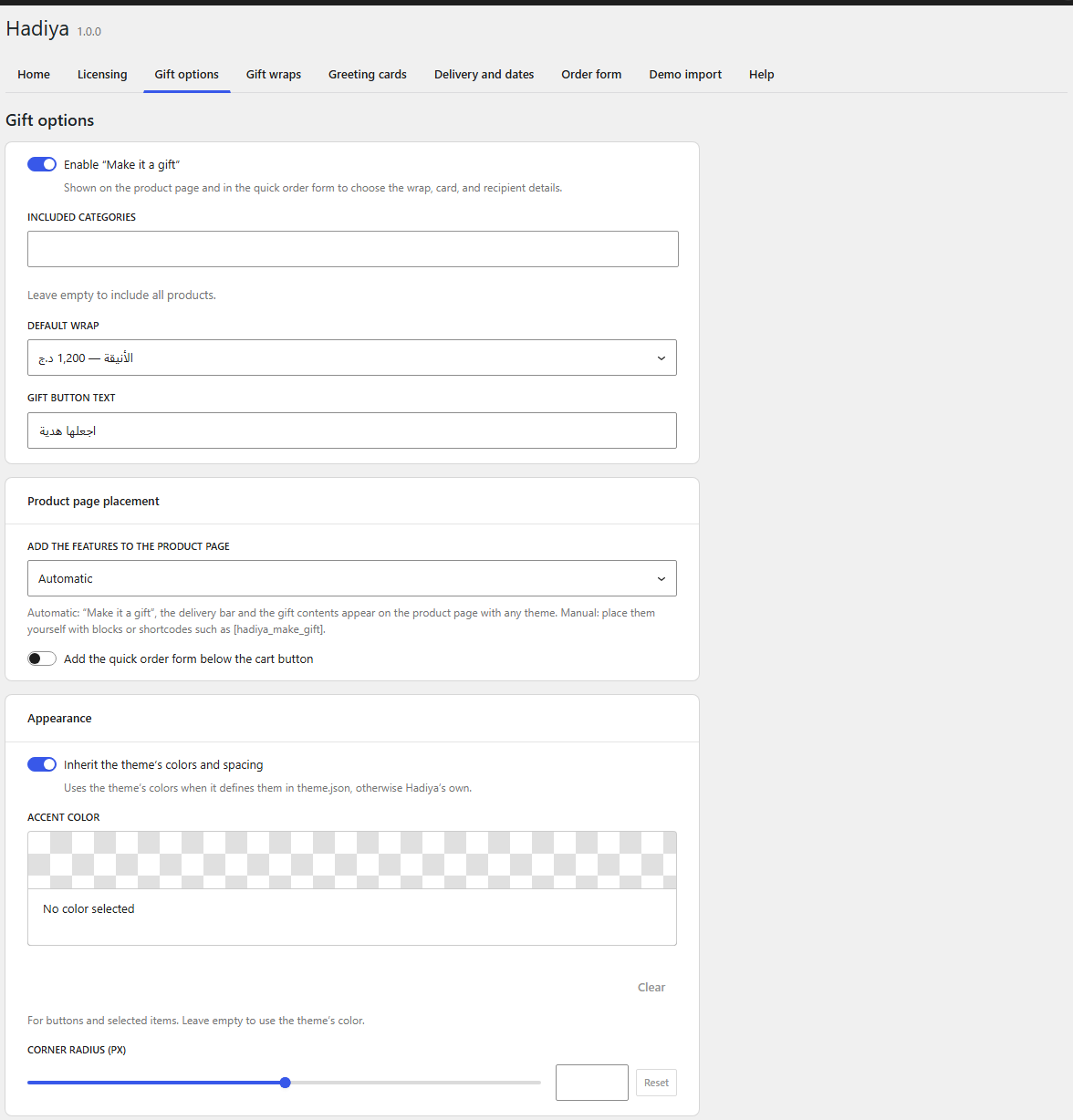
The same screen has the “Product page placement” and “Appearance” sections, explained in “Placement, appearance and shortcodes”.
Gift wraps
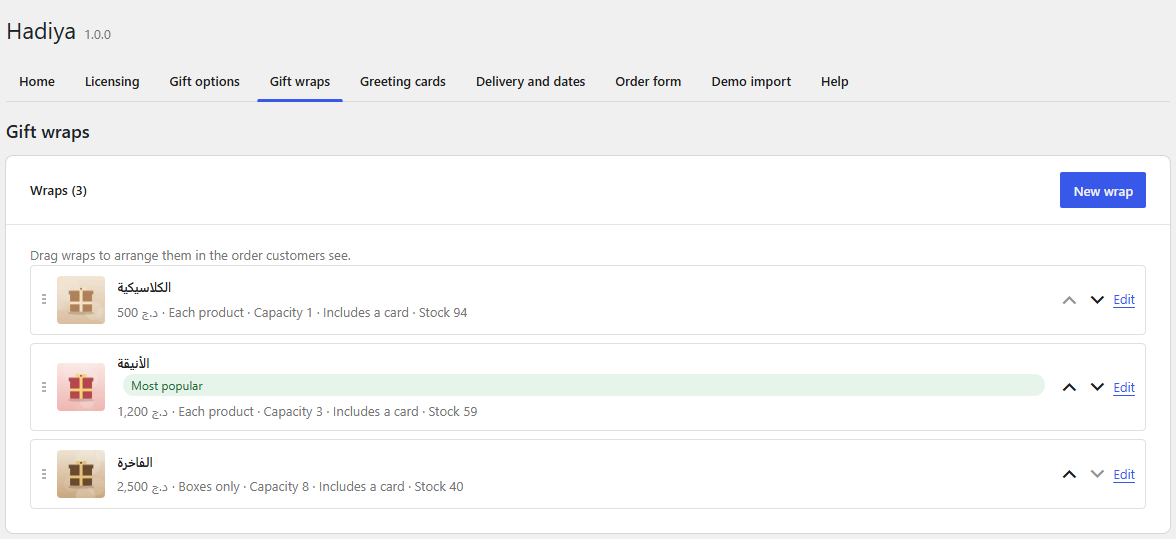
Open Hadiya → Gift wraps. You’ll see your wraps with their price and stock, an Edit link for each, and arrows to reorder them. Drag them or use the arrows to set the order customers see.
- Click New wrap.
- Fill in the name, price, stock (leave empty for unlimited) and the maximum capacity (number of items).
- Choose what it Applies to: each product (products and ready-made gifts) or boxes only (“build your gift box” products). Pro
- Turn on Includes a greeting card if the wrap comes with a card, and the “Best seller” badge to highlight it. Pro
- Click Create wrap.
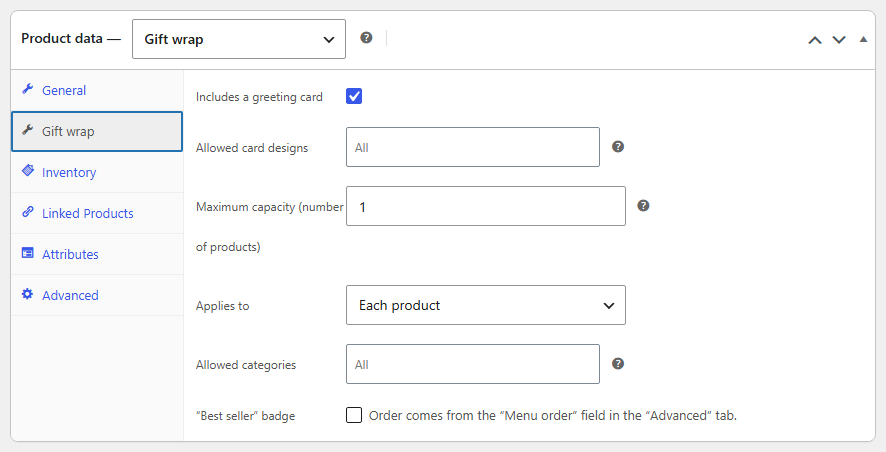
The image, description, allowed categories and allowed card designs are set on the wrap’s edit page (the Edit link), in the Gift wrap tab.
If the customer orders more than one item, the wrap is charged per item. They can choose to wrap them together in one wrap if its capacity allows. A wrap that is out of stock shows as temporarily sold out.
The greeting card
In the “Gift details” section the customer writes From, To and the message, and can choose a card without the sender’s name. The card preview updates as they type. Links aren’t allowed in the card text.
The card section shows if the chosen wrap includes a card, if the gift is for someone else, or if no wraps exist yet. Set the Maximum message characters (default 200) in Hadiya → Greeting cards.
Card designs Pro
In Hadiya → Greeting cards click Add a design, choose the card image, name it and set the text/border color. The customer picks a design below the message.
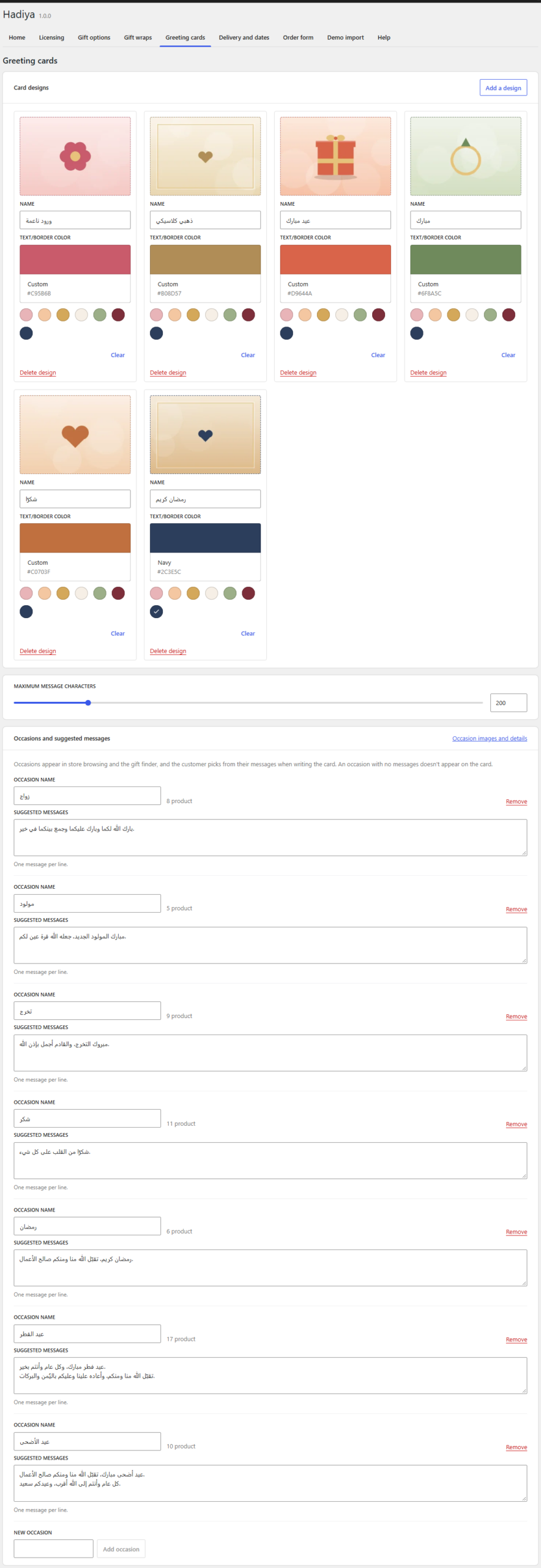
The printed card size (A6 or 10×15 cm) is set in Hadiya → Order form.
Occasions and suggested messages Pro
At the bottom of Hadiya → Greeting cards is the “Occasions and suggested messages” section. When the plugin is activated these occasions are created once: Eid al-Fitr, Eid al-Adha, Ramadan, wedding, new baby, graduation and thank you, each with ready messages.
- Edit an occasion’s name or messages. Write one message per line.
- Add an occasion in the New occasion field, then Add occasion.
- Delete an occasion with Remove. Products linked to it aren’t deleted.
The customer picks from the suggested messages for an occasion while writing the card, as in the first screenshot in this article. An occasion with no messages doesn’t show on the card but stays in store browsing and the gift finder.
Occasions themselves are a taxonomy under Products → Occasions, available on the free version. To add an image to each occasion, click Occasion images and details, or open the taxonomy directly.
Gift settings per product
On any product’s edit page there’s a Gift tab in the product data box:
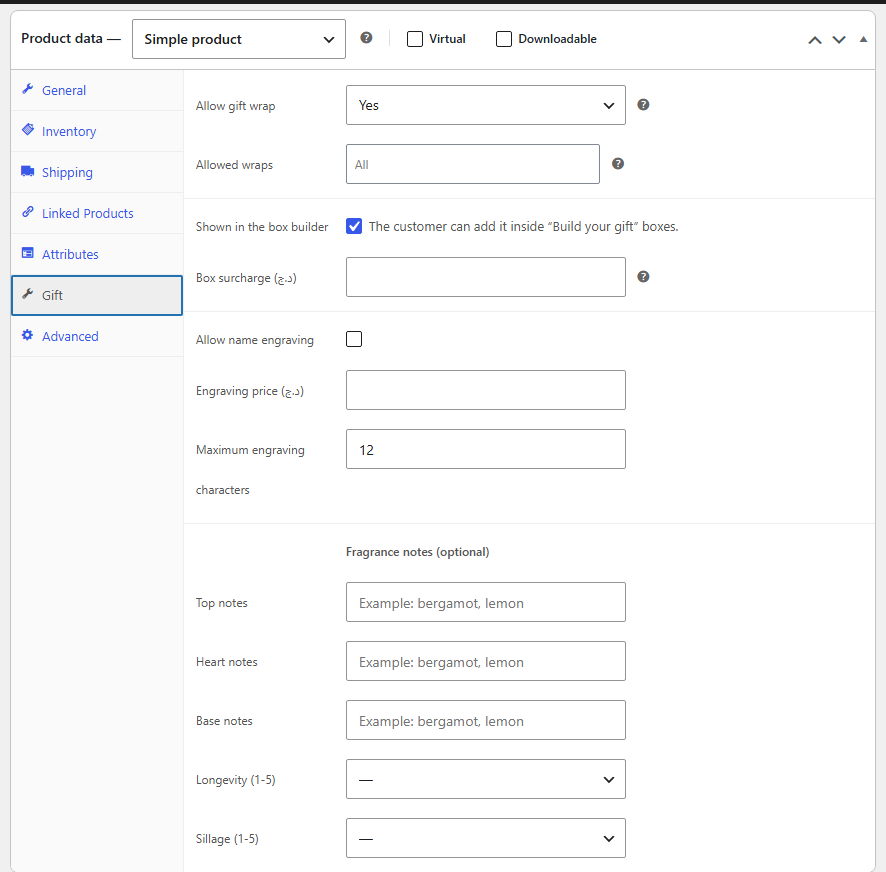
- Allow gift wrap: follow the global settings, yes or no. The global setting depends on the included categories.
- Allowed wraps: leave empty to show every wrap that matches the product’s category. Pro
- Shown in the box builder and Box surcharge: for “build your gift box” products, explained in the box builder article.
- Allow name engraving with the engraving price and maximum engraving characters. The customer types the text in the “Name engraving” section. Pro
- Fragrance notes (optional): top, heart and base notes, plus longevity and sillage from 1 to 5. They show in the “Perfume notes” block. Pro