
This article covers “build your gift box” products, ready-made gifts, the gift finder, and the recipients and occasions taxonomies that help customers choose.
The “build your gift box” product
The customer picks a box size, fills it with the products you allow, then chooses a wrap, writes the card, reviews and adds it to the cart.
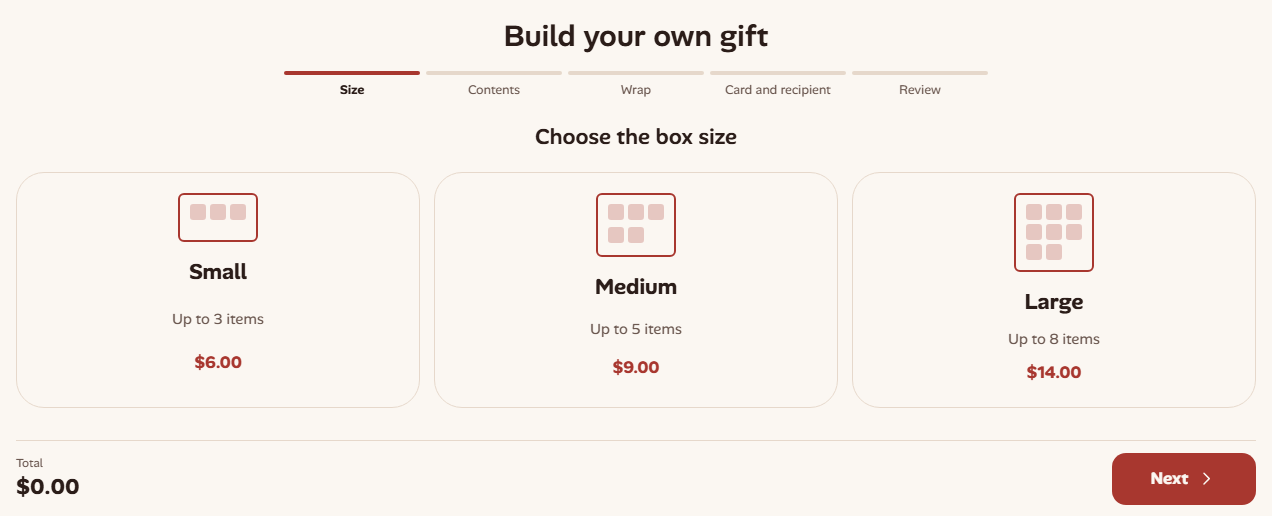
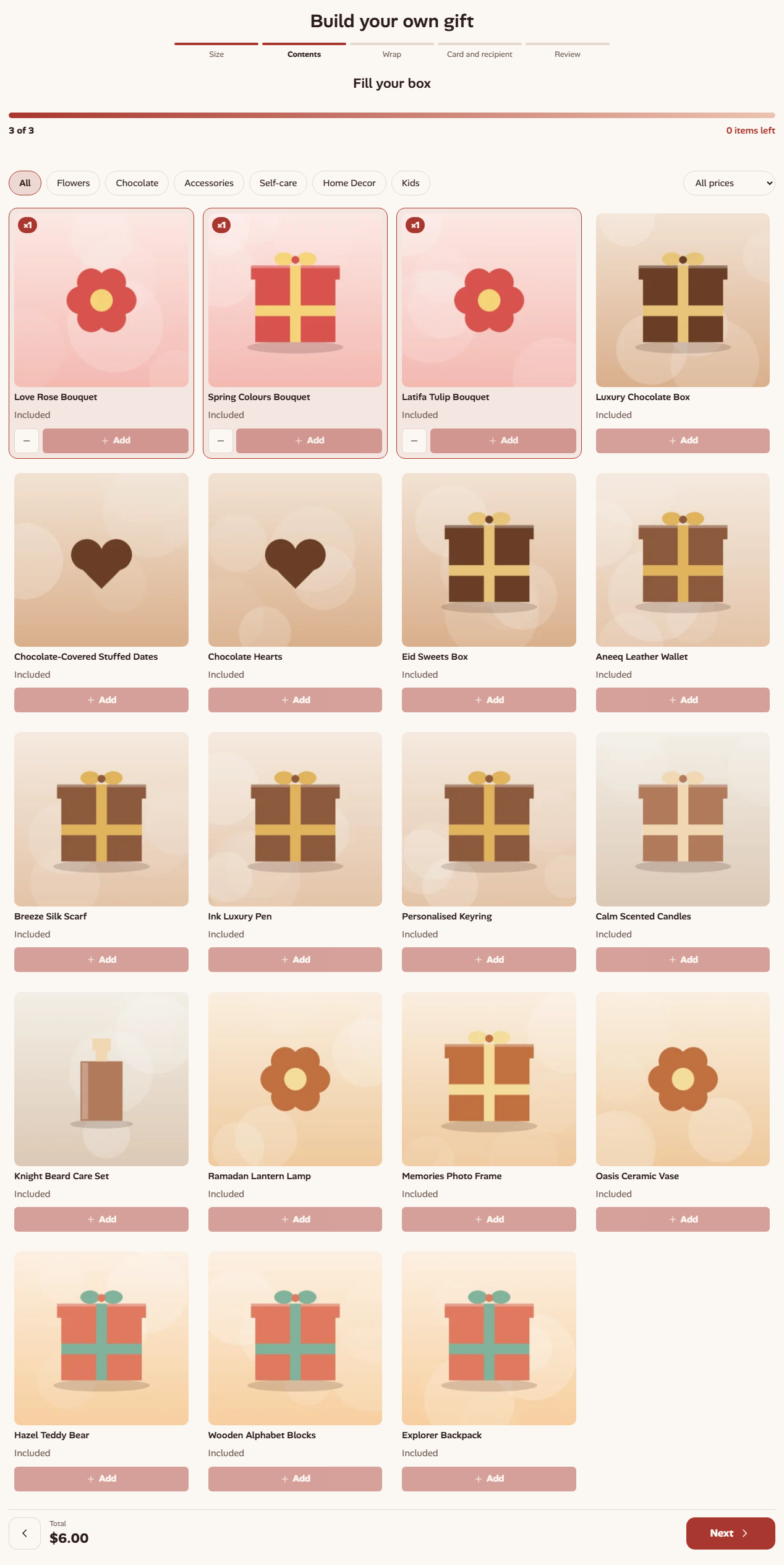
To create a box:
- Add a new product and choose the product type Build your gift box.
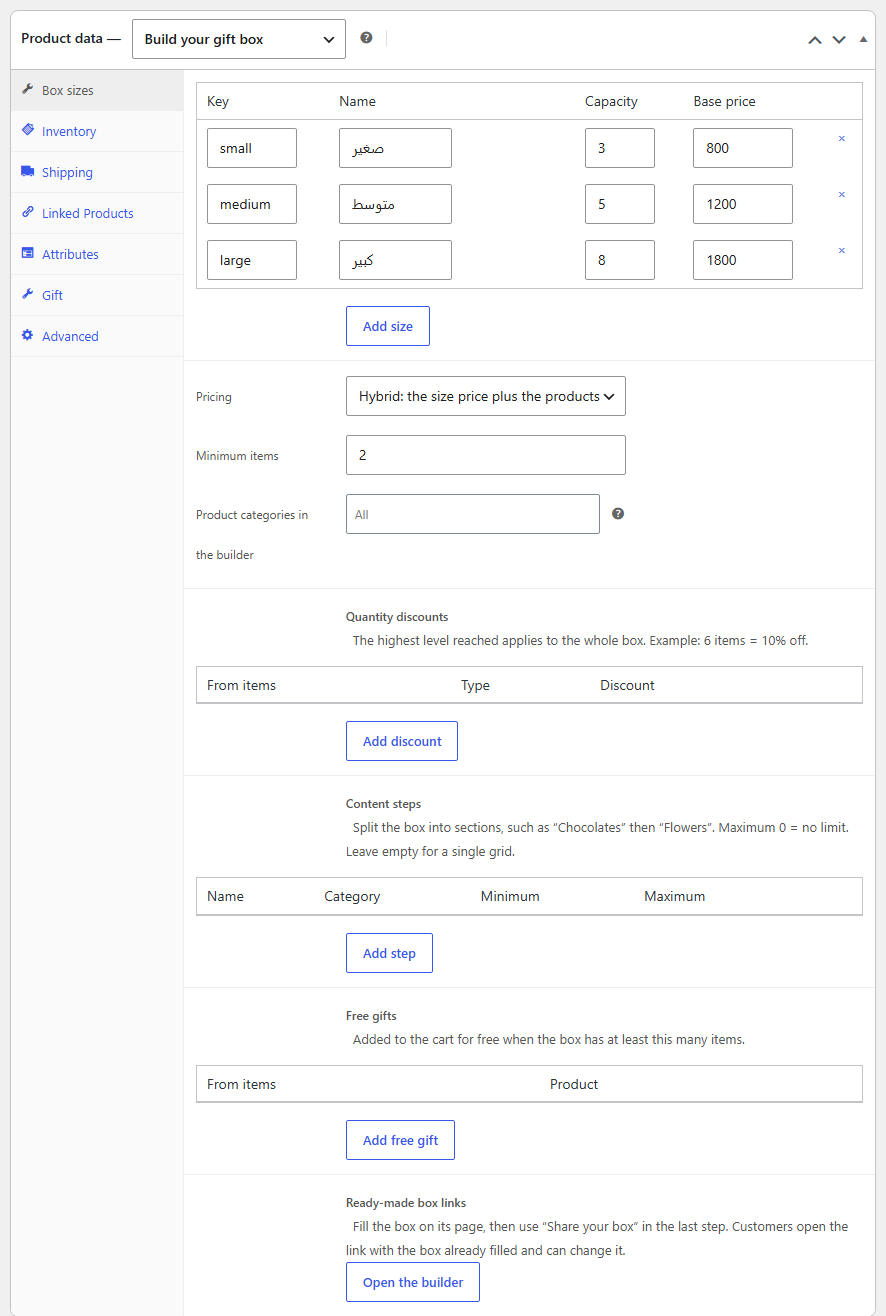
- In the Box sizes tab, add a size to the sizes table: key, name, capacity (number of items) and base price.
- Choose the Pricing:
- Fixed: the size price, plus any product surcharges.
- By contents: the sum of the products inside.
- Hybrid: the size price plus the products inside. Pro
- Set the Minimum items, and choose Product categories in the builder to limit the choice, or leave it empty.
- In each product you want in boxes, open the Gift tab and turn on Shown in the box builder. For premium items with fixed pricing, enter the amount in Box surcharge.
Stock is reduced for every product inside the box when it’s ordered. The box’s button in the shop reads “Build your box”.
Box features in Pro Pro
In the same tab, below the basic settings:
- Multiple sizes: add more than one row to the sizes table, and the customer picks the size in step one.
- Quantity discounts: rows of “from items”, type and discount, such as 6 items = 10% off. The highest tier the box reaches applies to the whole box, and the builder tells the customer how many more items unlock the next discount.
- Content steps: split the box into sections such as “Chocolate” then “Flowers”, each with a category and a minimum and maximum.
- Free gifts: a product added to the cart for free once the box reaches a number of items.
- Ready-made box links: click Open the builder, fill the box, then click “Share your box” in the last step to get a link that opens the box already filled.
Customers also see Share your box in the last step, which creates a link (or a WhatsApp message) that opens the box filled. Products that are no longer available are dropped from the link with a notice to the customer.
Showing the builder on another page
Add the “Box builder” block and enter the box product’s ID in “Box ID (0 = current product)”, or use the shortcode [hadiya_box_builder id="123"]. 0 or no ID means the current product.
Ready-made gifts Pro
A ready-made gift is a product that combines several products from your store into one gift. To create one:
- Add a new product and choose the type Ready-made gift.
- In the Gift contents tab, add products with Add item and set the quantity of each.
- Choose the Included wrap if the gift comes wrapped. Turn on Allow wrap upgrade so the customer can pick a better wrap and pay the difference.
- Choose the Pricing: “Fixed price (from the General tab)” or “Sum of items with discount” with a Discount percentage (%).
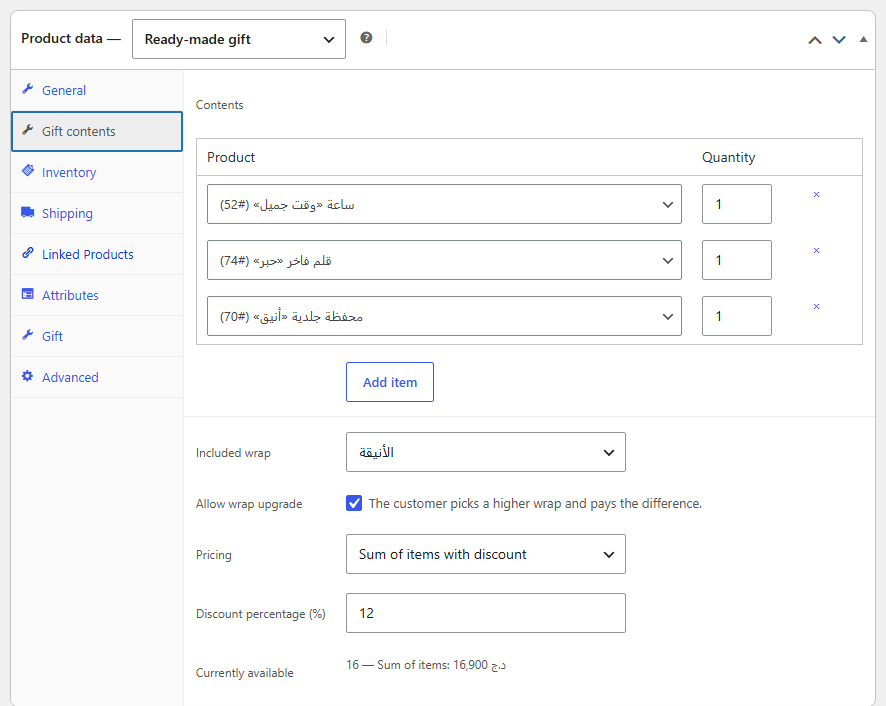
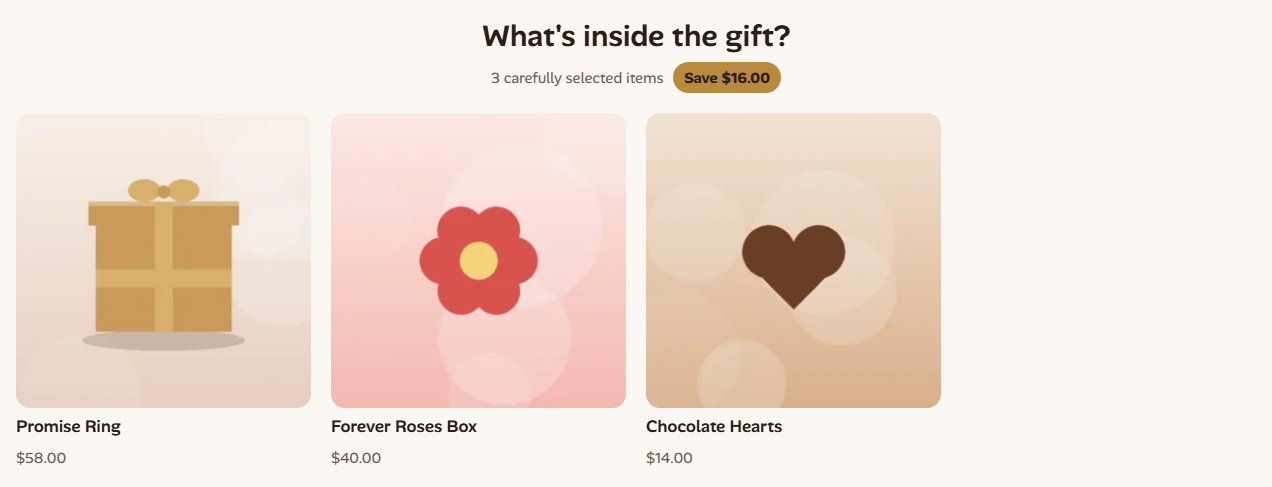
The gift’s available quantity is calculated from its items’ stock. On order, the items’ stock is reduced and a note is added to the order. The “Gift contents” block on the product page shows what’s inside and how much the customer saves.
Gift finder Pro
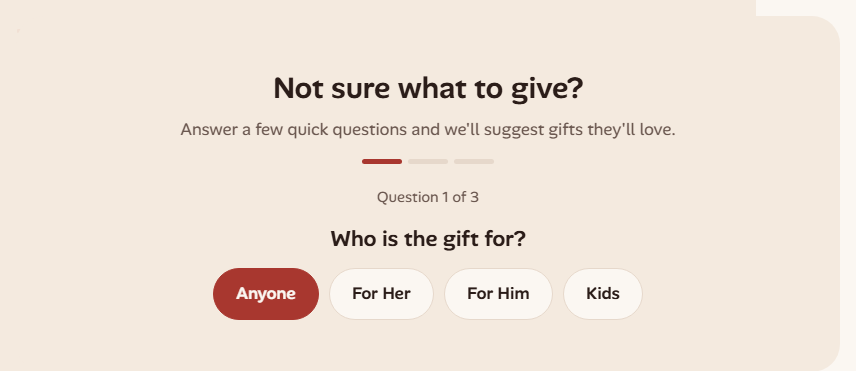
The “Gift finder” block asks the customer three questions: who is it for, what’s the occasion, and what’s the budget. It then suggests gifts from your store by recipient, occasion and price.
- Budget limits (comma-separated): amounts in your store currency that become price ranges.
- Number of results: how many gifts to suggest.
For accurate results, link your products to recipients and occasions.
Recipients and occasions
The plugin adds two product taxonomies: Products → Recipients (such as for him, for her, kids) and Products → Occasions. Each term has an image shown on the browse cards. Link each product to its recipients and occasions on its edit page.
- The “Browse by recipient” block shows recipient cards.
- The “Browse by occasion” block shows a grid of occasions with their images.
- In both blocks you choose the terms (empty = all), the columns and “Hide empty”. The occasions block also has a maximum number and “Show product count”.
Each recipient or occasion page uses the “Recipient archive” or “Occasion archive” template in block themes, which you can edit in the Site Editor.